January 22, 2024 @ 09:17 PM
Welcome Everyone!
A Note on Images
Many of the images are quick screengrabs and may look less than their best resolution when reduced in size. You can right-click (or the Mac equivalent) on any image to open it to its full size or to save it to your own computer.

Now let’s explore! Log into your ASU Rstudio server account.
What are R and RStudio?
Ris a programming language that runs computations- RStudio is an integrated development environment (IDE) — a user interface that makes it easier for us to interact with
R
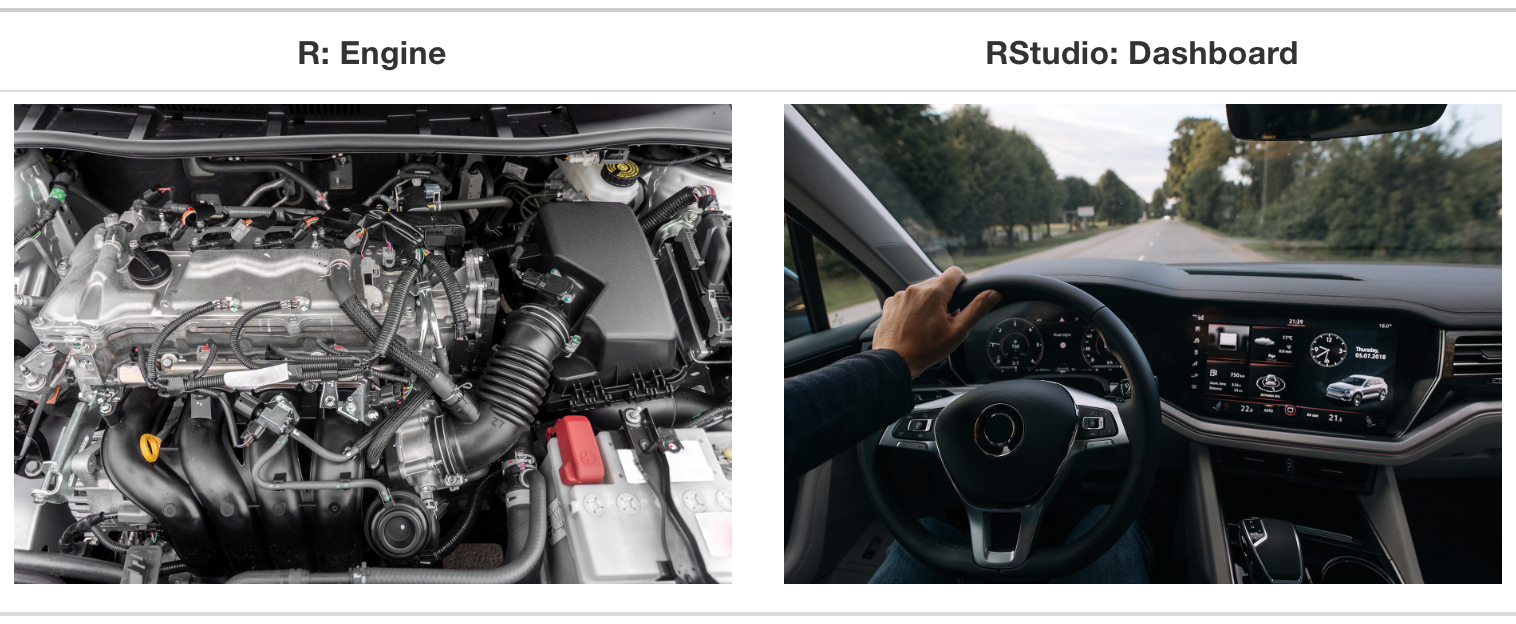
Analogy of the difference between R and RStudio (from Modern Dive)
The RStudio (Posit) IDE
An integrated development environment (IDE) is software that combines common tools into a single graphical user interface (GUI). Common components include:
- A text editor with features such as syntax highlighting, auto-completion, and checking for bugs.
- Utilities that automate simple, repeatable tasks.
- A program for testing code to find bugs.
RStudio isn’t the only IDE for R, but it is one of the most widely used. Like the textbook Modern Dive says, R is like the engine and RStudio is the dashboard that lets us drive the car. We can also add packages to “soup up” our engine.
The Power of R and RStudio…
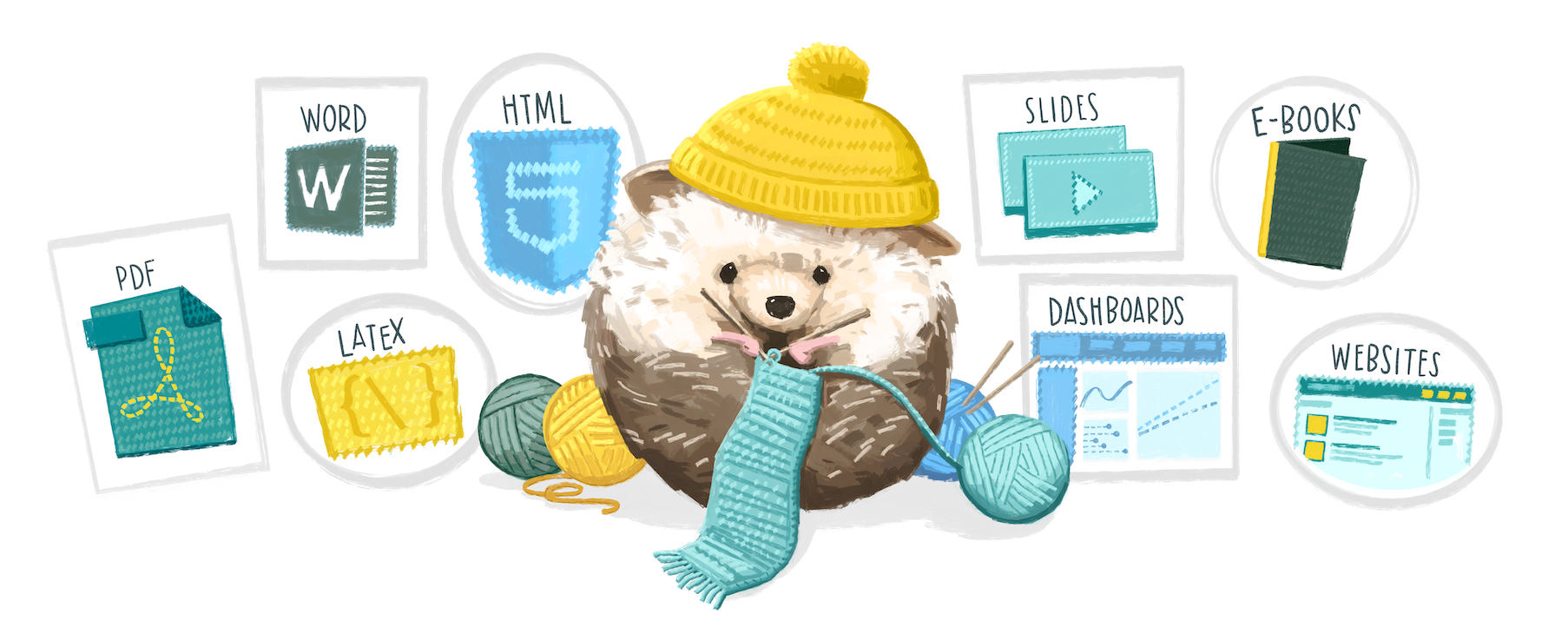
The slides you’re looking at right now were created in RStudio using R Markdown that was “knitted” into standalone HTML.
Many of our online textbooks were produced the same way!
When you First Log In…
Your RStudio server will look something like this, except your Console pane (what is that, you ask?) will be on the left.

RStudio’s Four Panes
There are four “panes” in the RStudio interface.
Console pane (this is the R engine)
Environment pane
Files/Plots/Packages/Help pane
Source Editor (coding/document) pane
You can rearrange these panes to suit your own preferences. We will talk more about that shortly…
The first time you log into the RStudio server, you will not have a Source Editor. We will talk about how to create new code scripts and R Markdown documents for you to code in.
Pane Functions in Brief
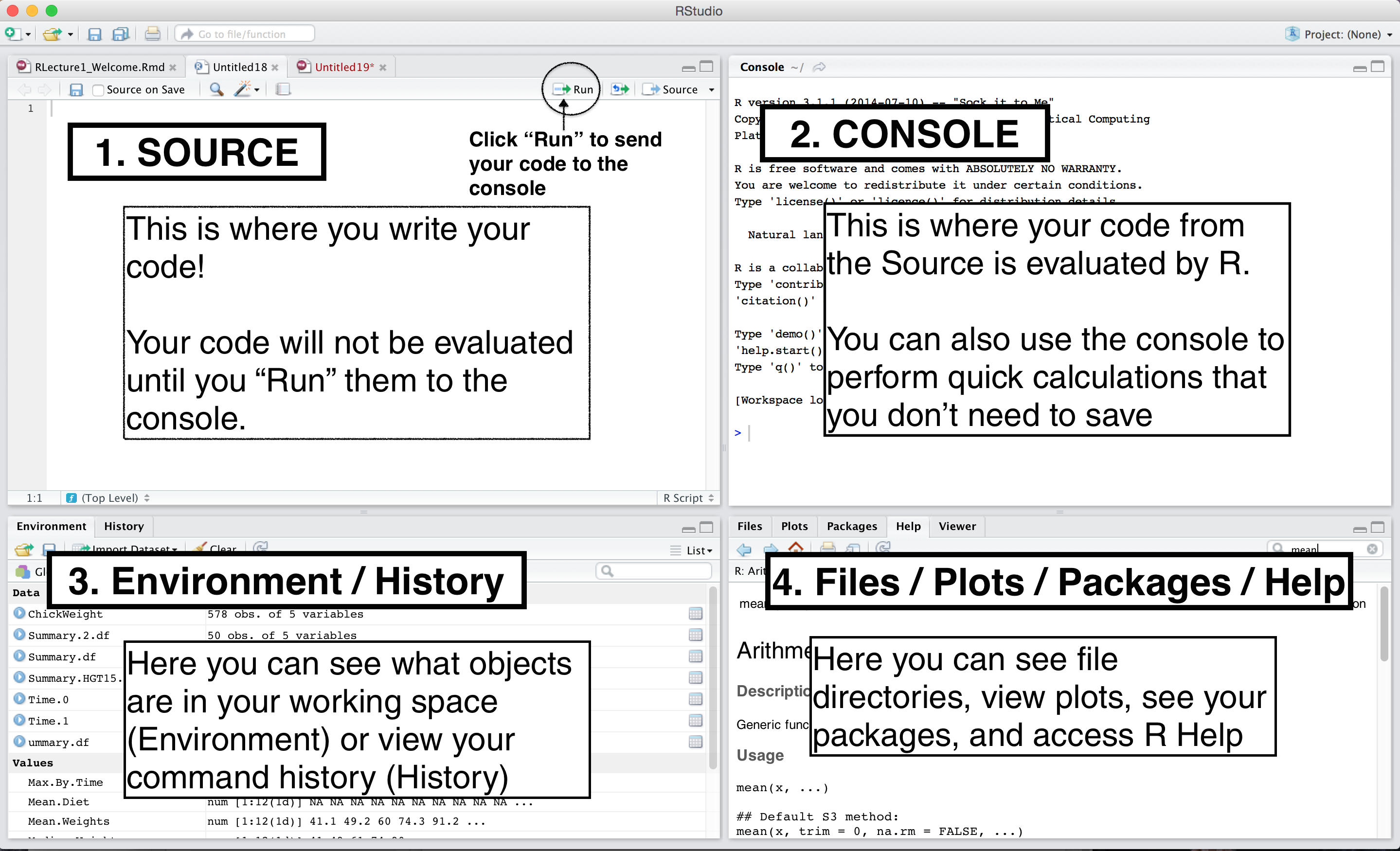
The four panes of RStudio (from YaRrr! The Pirate’s Guide to R)
Where is the Source Pane?
After we open a script or R Markdown file to edit code, you will see all four panes. The default position is the upper left corner.

Opening a Source File
This menu is much like any windows program — File > New File.

Script File
The file extension on an script is .R, but it is just a plain text file. Notice the set of options in the pane’s menu bar.

Script File Toolbar Options
- show in new window
- save
- Source on Save
- Find/Replace
- Code Tools
- Compile Report
- Run
- Rerun previous code region
- Go to previous section/chunk
- Go to next section/chunk
- Source
R Markdown File
The file extension is .Rmd, but it is also basically just a plain text file. The difference is in the processing. Notice the options in the pane’s menu bar—they are different than a script.

R Markdown Toolbar Options
- show in new window
- save
- Knit on Save
- Check spelling in document
- Find/Replace
- Knit
- Tools (gear icon)
- Insert a new code chunk
- Go to previous/next section/chunk
- Run
- Publish document
Dr. Thomley’s ongoing battle…
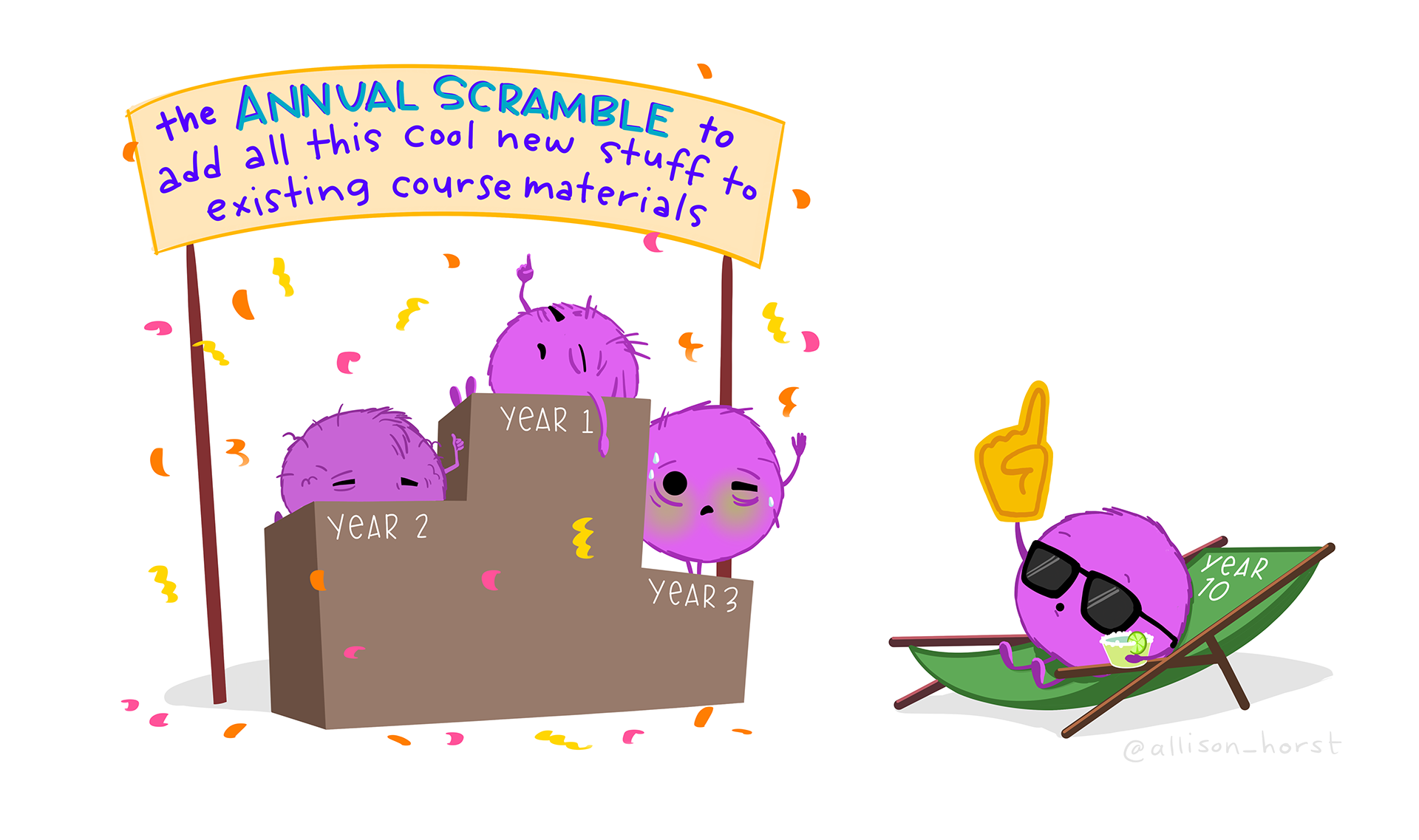
Choices, choices, choices…
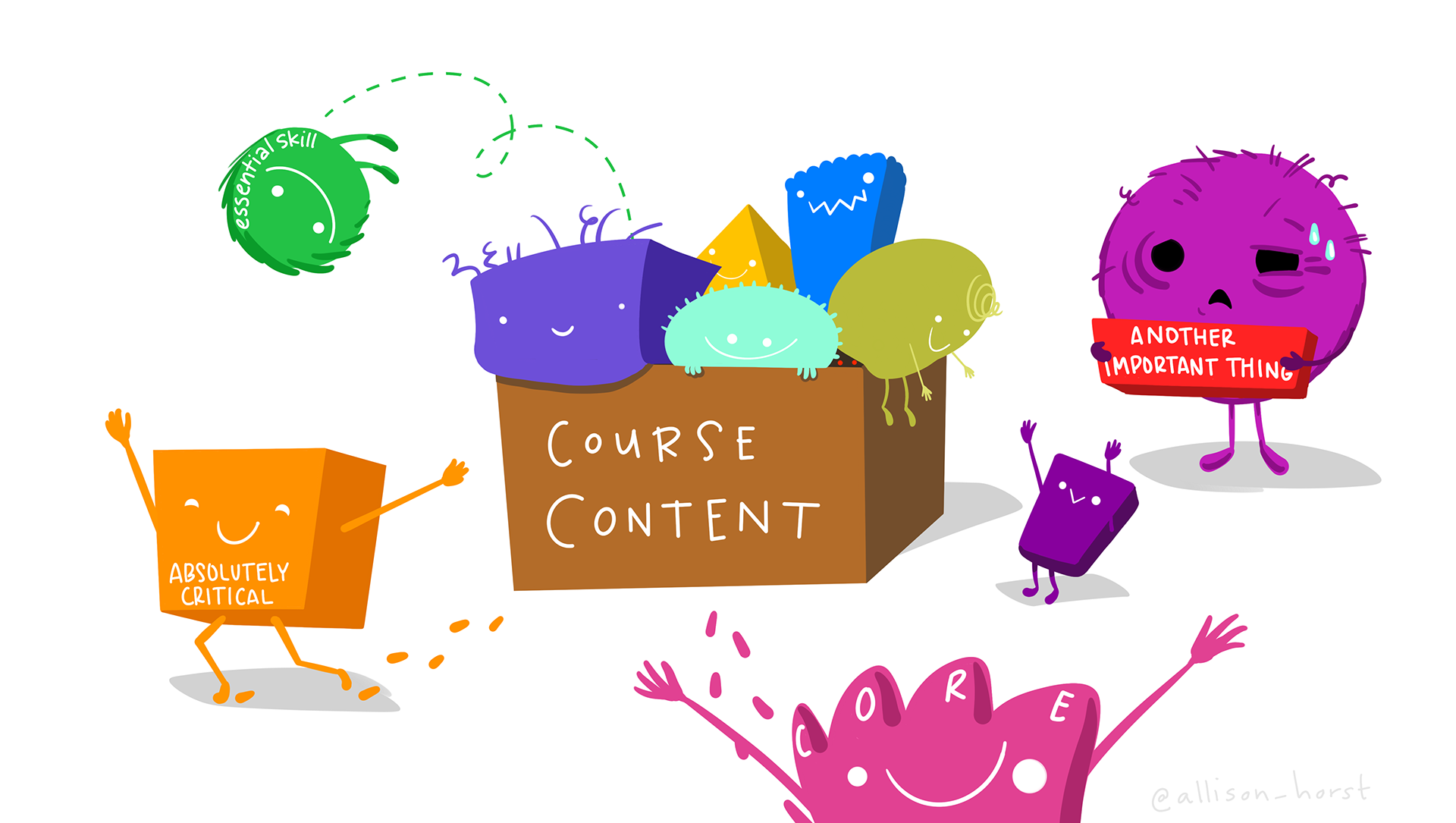
Quarto File
Quarto is a free and open-source scientific / technical publishing system. From its website…
“Quarto is a multi-language, next generation version of R Markdown from RStudio, with many new features and capabilities. Like R Markdown, Quarto uses Knitr to execute R code, and is therefore able to render most existing Rmd files without modification.”
Quarto also integrates with Python (plus other languages) and a popular IDE from Jupyter.
We are primarily going to use R Markdown documents in this class. If you learn that, then you’ll be equipped to expand your skills later. That’s one big fact of data science: you never stop learning because it never stops evolving (and quickly)!
One of our goals in STT 2860 will be to learn how to learn…

Customizing the Setup
We will set some options that make RStudio work better for us in our class environment. You will find the menu under Tools > Global Options. (Also open Customizing the RStudio IDE.)

Editor Theme
You can change the editor theme and font size in RStudio to the settings that are most effective for you.
The different colors in the Source pane are intended to help you code by visually distinguishing different parts of the code.
For example, functions will be one color and strings of text that are inside quotation marks will be another color. Text formatting like italics also will be a different color.
Go to Tools > Global Options > Appearance in the toolbar.
I like a dark theme with somewhat muted colors called "Tomorrow Night".
Appearance / Theme
Choose a theme you like. You can also change your font size.

Changing Pane Layout
I like my Console to be on the upper right, so I can maximize the Source and Console panes at the same time, and so code “flows” left to right. You can choose what works for you.

Tools > Global Options > General (Basic)
The most important thing to do here is unclick “Restore .Rdata into workspace at startup” and also change “Save workspace…” to Never. Failing to do this can cause issues with your account.

Code Settings in the IDE
Many of the settings are intended to make programming easier.
How features like the cursor behave
Suggestions and auto-completion for code
Multi-colored parenthesis to help with matching
Additional styling suggestions for enhancing readability
As your data science skills evolve, you may want to adjust your RStudio settings.
Finding what works best for you requires some trial and error.
Tools > Global Options > Code (Editing)

Tools > Global Options > Code (Display)

Tools > Global Options > Code (Saving)

Tools > Global Options > Code (Comp.)

Tools > Global Options > Code (Diag.)

Code Menu
Comment/Uncomment Lines and Reindent Lines are helpful!

Session Menu
Sometimes when R is behaving in an inexplicable way, you may need to save your work and restart your R session. Yes…this is basically turn it off and back on again ;)

Help Menu
There are several “cheat sheets” available. You can also view all the keyboard shortcuts here, get help with simple R Markdown formatting, or turn on accessibility options.

At first, things might feel a little like this…

But I can tell you from past experience that most folks succeed in STT 2860 if they come and engage with an open mind.
References
Command History in the RStudio IDE
Editing and Executing Code in the RStudio IDE
Keyboard Shortcuts in the RStudio IDE
Working in the Console in the RStudio IDE
Cartoon illustrations: Artwork by @allison_horst